# How to Inject Scripts to Websites Using TamperMonkey
*By Ridbay*
*Medium*
_Source:
> How to Inject Scripts to Websites Using TamperMonkey What is TamperMonkey? TamperMonkey is an extension on Google Chrome (and some other browsers like Opera, you can use GreaseMonkey as an …
[

](https://ridbay.medium.com/?source=post_page---byline--cffca17c8e2e---------------------------------------)
## **What is TamperMonkey?**
**TamperMonkey** is an extension on Google Chrome (and some other browsers like Opera, you can use GreaseMonkey as an alternative on Firefox ).

**TamperMonkey** allows you to inject additional JavaScript codes into web pages you load in your browser, you can add/remove features, and you can do some hacky stuff or automate things.
For example, let’s say you want to be able to download YouTube videos, You can use a TamperMonkey script to add a “**Download**” button to the videos.
TamperMonkey gives this awesome power and you can have access to pretty much everything you could get by writing a script or using some already-written scripts, and it has a dashboard that you can easily use to manage and edit the scripts in one interface.
You can also access hundreds of already written user scripts via this site [Greasy Fork](https://greasyfork.org/).
Just search for the script you want and and you will get a lot of scripts that are relevant to your search query.
## **So, how do you use TamperMonkey ?**
Using Google Chrome as an example;
1. Goto your Google Chrome extension page by clicking [**https://chrome.google.com/webstore/category/extensions?hl=en**](https://chrome.google.com/webstore/category/extensions?hl=en)
Press enter or click to view image in full size

2\. Search for TamperMonkey

3\. Click on **“Add to Chrome”**
Press enter or click to view image in full size

4\. Add the Extension to your chrome

5\. Once it has been installed, Click on the Extension and click on Dashboard

6\. Here you will have access to the TamperMonkey Dashboard
Press enter or click to view image in full size
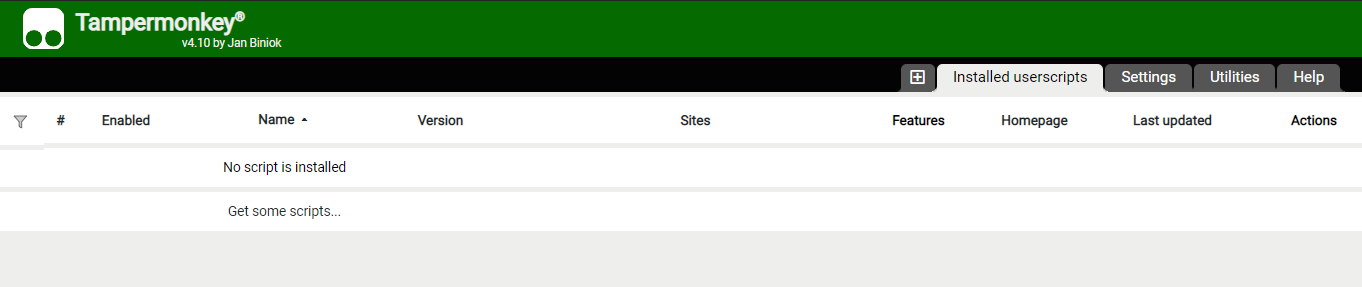
7\. To install a new Script, go to [**Greasy Fork**](https://greasyfork.org/) and search for user scripts, and in this example, I need a script that can download Youtube Videos, Let’s say I want to download [**NASA Astronauts Arrive at the International Space Station on SpaceX Spacecraft**]( video.
## Get Ridbay’s stories in your inbox
Join Medium for free to get updates from this writer.
8\. If you click on that Youtube Video link before installing the “**YouTube Download Script**”, You would notice that there is no option to download the video;
Press enter or click to view image in full size

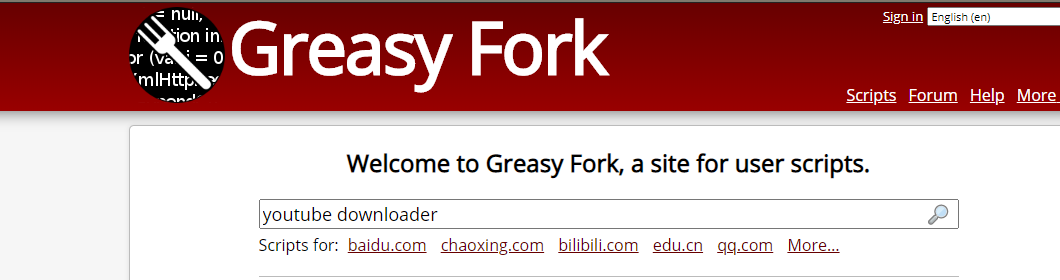
9\. On [Greasy Fork,](https://greasyfork.org/) use a search query that is relevant to the particular script you want, e.g “Youtube downloader” then press “Enter”.
Press enter or click to view image in full size
10\. You will get a bunch of results relevant to your search query with the author details and some other information like ratings, date created, number of downloads etc.
Press enter or click to view image in full size
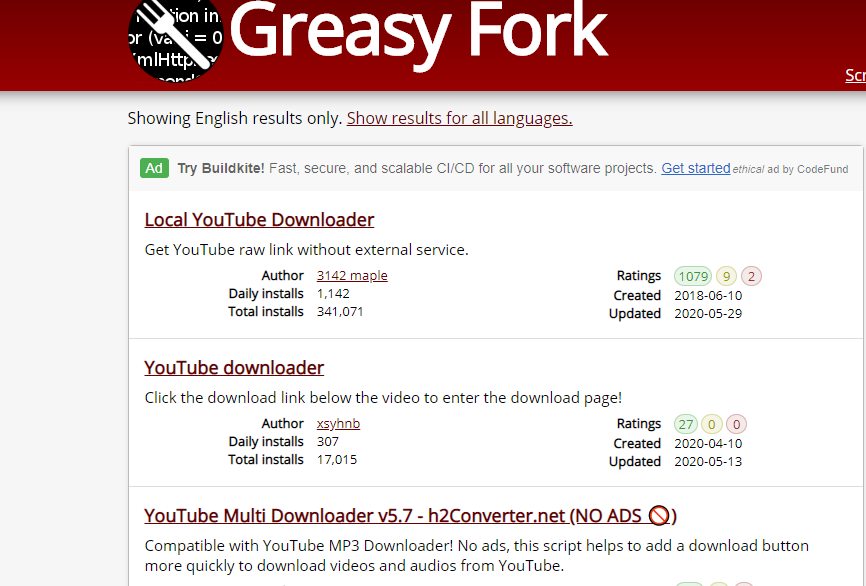
11\. Click on the script of your choice and in this example, I will use the first result “**Local YouTube Downloader**”
Press enter or click to view image in full size

12\. Click on “Install this Script”
13\. Click on **Install**
Press enter or click to view image in full size

14\. Go to the Website it works on (In our case, Youtube.com), and now we have the option to download the video
Press enter or click to view image in full size

## **How do you manage the scripts/write your own custom user script?**
1. Click on TamperMonkey extension at the top right corner of your browser, and click on Dashboard

2\. On the Dashboard, you will have access to already installed scripts, you can enable and disable the script.
Press enter or click to view image in full size

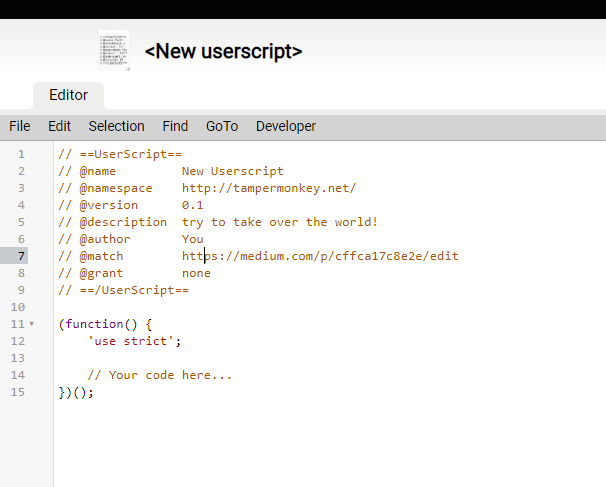
3\. To create your own user script, click the Plus (**+**) icon
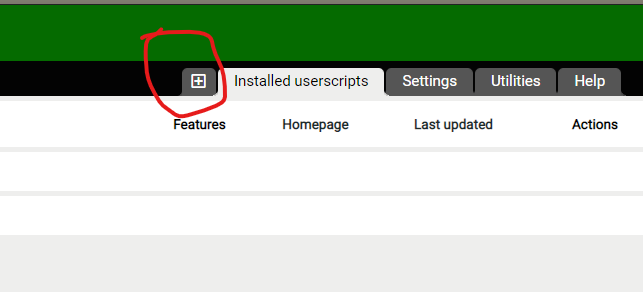
4\. This will open a text editor where you can write/paste your own codes
## **How do you perform actions on user scripts?**
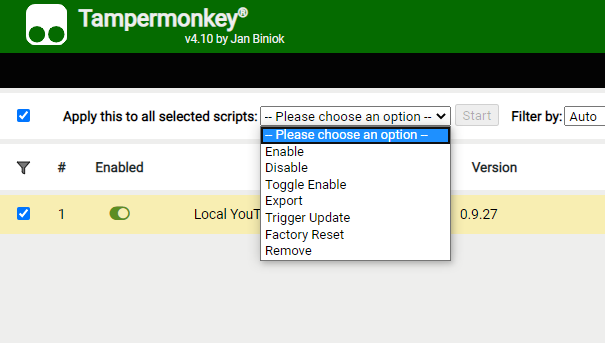
1. Click the Checkbox at the back of the user script name

2\. Then select the particular action you want to perform, then Click “**Start**”
You can see how useful and awesome TamperMonkey is.
I hope you have learned something new.
Thanks for Reading!!!
Medium
Medium